In this article we will cover common issues and the trouble shooting steps to take to identify and resolve those issue.
Unable to Login into Jet Hub
Most common issues effecting login to jet hub:
- User has bookmarked a old link for the Jet Hub. Advice the client to visit the Jetinteractive.com.au home page and use the 'Login' link in the top right corner.

- User is trying to use there Jet Phone login details to login to the Jet Hub. Confirm with client what credentials they are using.
- Using incorrect or forgotton login details - Advise the client to enter valid email address and then click 'Forgot your Password? Click here to reset it.' and follow the prompts.
Please note, your details for Jet Hub will probably be different to your Jet Phone app login.
If you need to log into your Jet Phone app, please refer to this article: I can't log in to my Jet Phone
If you have forgotten your login details to Jet Hub, you can reset your password by clicking Forgot Password on our main login page here: Jet Portal
Forgot your details?
If you are unsure of which email you are using to sign in, please speak to your account administrator and they will be able to view all authorised emails via the Account Users page. They can also send you a new invite if needed - here's how: How to Add a New Jet Portal User.
If you are an account administrator and you have forgotten your login email, please submit a ticket with Jet Support in the top right of this page.
Please note - Jet Support cannot add new users to your account without permission from an account admin or authorized contact.
Unable to login to Jet App
Please note, your login details for the Jet phone applications will probably be different to your Jet Hub login.
If you need to log in to Jet Hub, please refer to this article: I can't log in to Jet Hub
The login details for your Jet Phone applications are stored on the Extensions page in Jet Hub.
You can email a copy of these details directly to the email address that is set up against the extension by clicking the Email Action icon.

If you need to update the email configured against your extension, click the pencil to make changes:

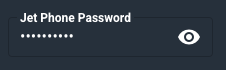
You can also update the password for this extension by selecting the Edit pencil above, and updating the Jet Phone password field that appears in the bottom right.
Click the eye to view the current password, update if required and select Save to update these details.
More information on updating Extension details is in our article here: How to Modify Phone Users
If you need to order a new extension, please submit a ticket in the top right of this page, and select the ticket reason of Order New Service.
Calls dropping out mid call.
Calls Quality Issues
1.Software issue
2. Network environment
3. Hardware issue
Calls going straight to voicemail and not ringing on Jet App
Calls ringing on only one device
Unable to receive Inbound Calls but can make outbound calls without issue.
Could be the UDP connection not being maintained. This could be due to the router, although most standard routers don't have this issue.
Things to check:
- Does the App work when connected through a different internet connection? E.g. When using a hotspot from a mobile device.
- Does the App work when used on a different device using the same internet connection? E.g. Using the mobile app connect to the same internet connection as your Desktop
Testing these will isolate the issue to your device or to your network connection. If the issue is present on multiple devices using the same network connection and then works fine on another network connection we can safely assume the issue in network related.
To help optimize your network connection please see this article - Improving your Network or Router Setup and contact your ISP.
When speaking to your ISP mention the information under:
-
SIP ALG
-
UDP or TCP Connection Protocols
Yealink desk phones can be configured but Cordless devices will not
Could be a Dual Bandwidth issue (see troubleshooting steps).
To resolve, you need to speak to your ISP to check bandwidth structure. Once reset, if it happens again then powering off the modem for 5 minutes and then back on has also worked.
Yea link Unable to make/receive calls:
You can check the SIP account icon status to make sure the SIP account is registered.
2. If the SIP account is registered, but end user has enabled DND feature (Don’t Not Disturb) accidentally, he won’t receive any calls as the phone deny any incoming calls.
Please Disable ‘DND’ feature on Phone UI.
OK->Call Features->Do Not Disturb -> chooses relate account -> Choose the status.
3. If the SIP account is registered, but the end user enable “always forward” feature accidentally, he won’t receive any calls as the phone forward all incoming calls to other destination.
Please disable forward feature on Phone UI:
Phone path: Menu->Features->Call Forward->Always forward (Disable)
OK->Call Features->Call Forward-> chooses relate account -> Always
4. After disable DND and Forward features, but still can’t receive incoming calls,
If the issue still exists get the Diagnostic File