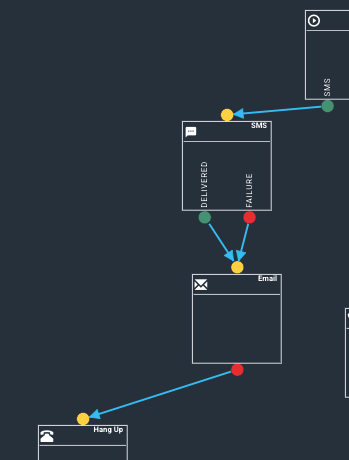
The SMS widget is only used for Cloud Mobile extensions and allows you to receive SMS messages on your Jet App. Generally the SMS widget is only used when creating the Direct to Extension with Voicemail and SMS template or when modifying existing callflows.
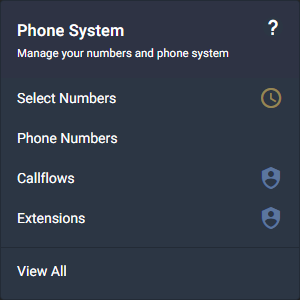
Step 1 - Under the Phone System menu, select Callflows.
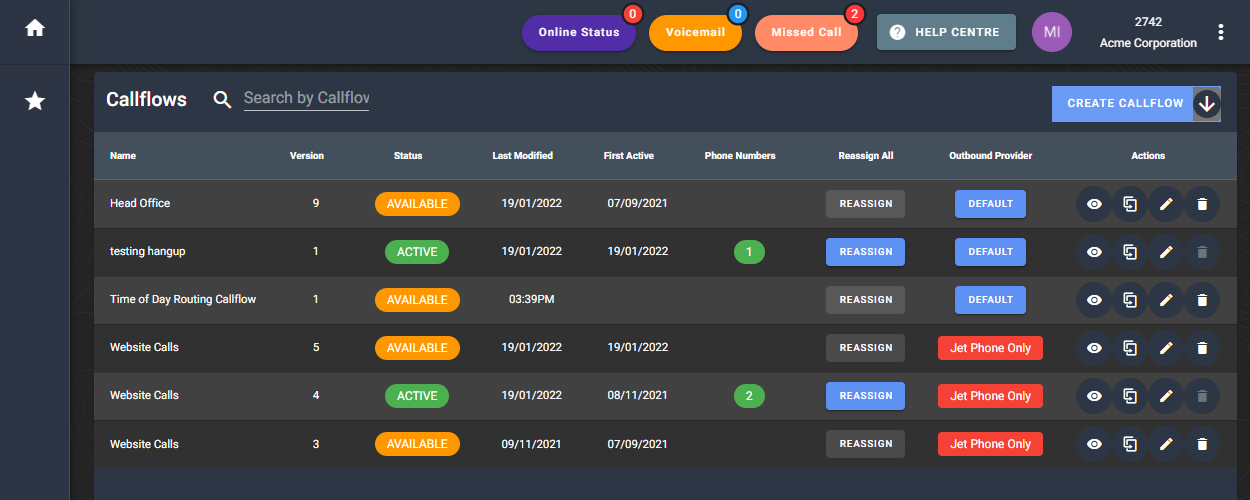
Step 2 - Find the callflow you want to modify and click the edit button or select CREATE CALLFLOW and select the Direct to Extension with Voicemail and SMS template.
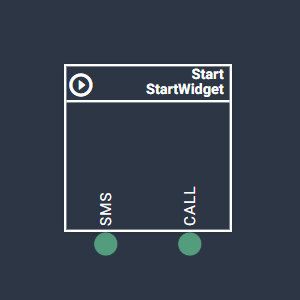
Step 3 - If SMS is not already enabled in the callflow, enable SMS by clicking on the Start widget to open the configuration window.
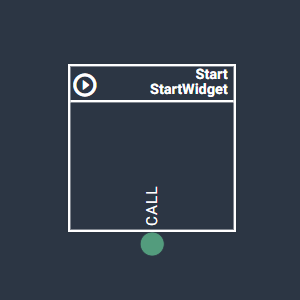
In the Start widget configuration window tick the enable SMS check box.

You will now see the SMS node appear. This will be where you connect the SMS widget to your callflow.
Step 4 - In the callflow, click on the SMS widget. A window with the configuration details of the widget will be displayed.
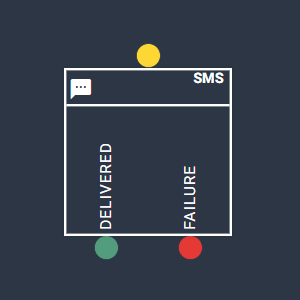
Alternatively if there is not a SMS widget in your callflow, click on the widget selection button and drag a voicemail widget to the canvas.

Step 5 - In the SMS widget configuration box select the Cloud Mobile extension or extensions you would like to have receive SMS for the mobile number associated to the callflow. Then select ADD.
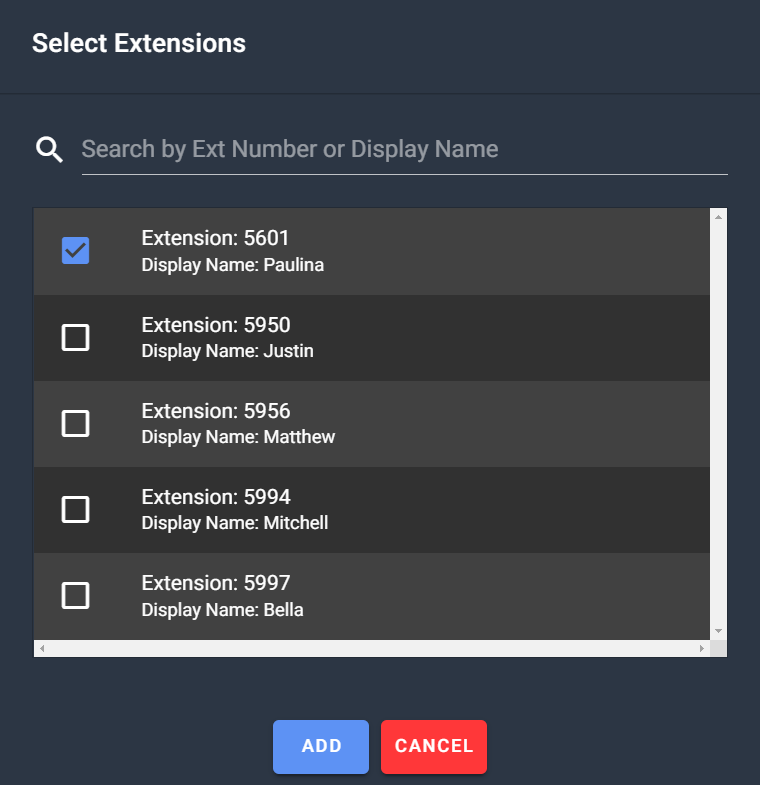
Note - We recommend a 1 to 1 relationship for SMS and cloud mobile extensions. If you would like multiple people to view SMS's from a single number we recommend using the SMS Report feature in the Jet Hub.
Step 6 (optional) - We recommend adding the email widget to send you an email notification for messages that fail to be received. Then end the callflow with a Hang-up widget. Your typical SMS enabled callflow will look like this once complete.
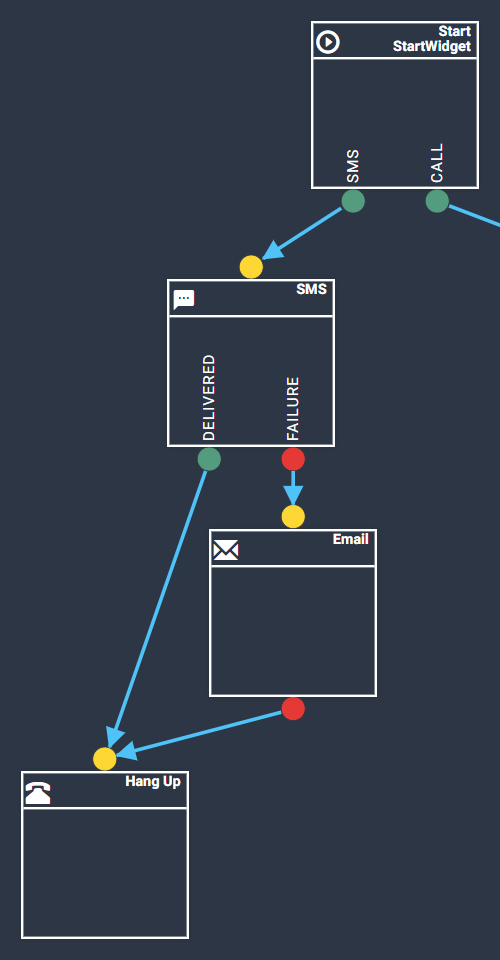
You can also choose to get an emailed backup of every SMS received from this callflow. In this scenario, direct both the Delivered and Failure nodes to the Email widget, and ensure you select the SMS template in the email configuration.