The Custom Tab on the JetPhone App allows you to access Voicemails. You can take notes on voicemails, flag them as important, listen to them and mark them as unplayed/unread.
In order for voicemails to be viewable in your Jet tab, you will either need to have a direct callflow set up with voicemail or your phone user will need to be selected to receive voicemails from a callflow.
In callflows where there are multiple recipients for the voicemail widget, updating the "read" status or adding notes will appear for all. These status updates will also be reflected in the Jet portal on your reports and Voicemail Manager
How to access voicemail on the mobile app
1. At the very top or bottom of the application interface (depending on if you are using Android or IOS), you will find a tab labelled "Jet". This tab serves as a dedicated section where you can easily access and view a comprehensive list of all voicemails that have been received on this particular number. By clicking on this tab, you will be presented with an organised display of your voicemail messages, allowing for efficient management and review.
2. If you click on the = icon next to any voicemail entry, a menu will appear that provides you with several useful options for managing your messages. These options include the ability to flag a voicemail for follow-up or special attention, add a personalised note to the message for future reference, or change the status of the voicemail by marking it as either played or unplayed.
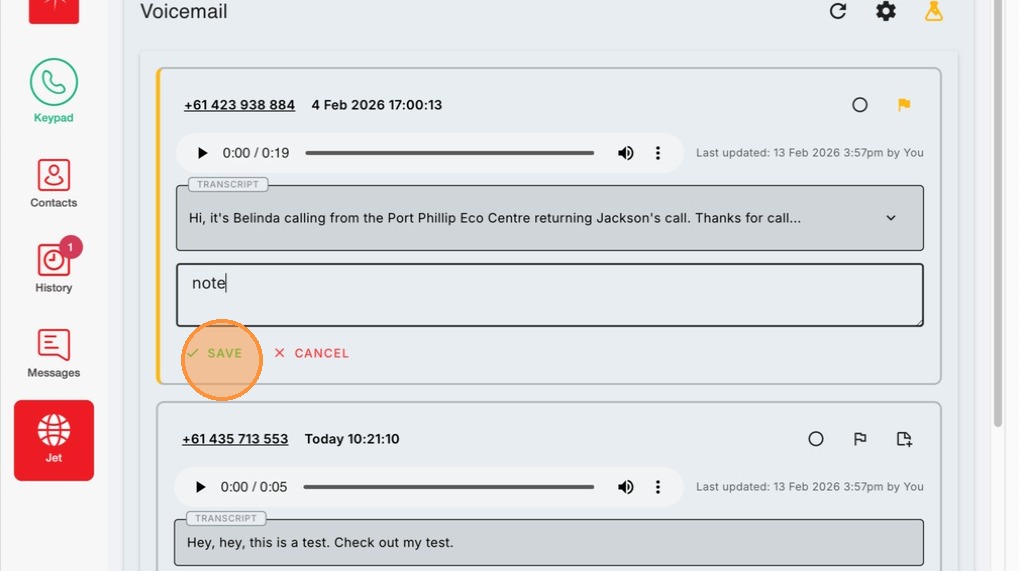
3. When you choose to add a note to a voicemail, it is important to remember to click the Save button after entering your note.
On Desktop
- To begin, locate the Jet Tab positioned on the left side of your screen and click on it. This tab serves as the main navigation point for accessing your voicemails and related features.
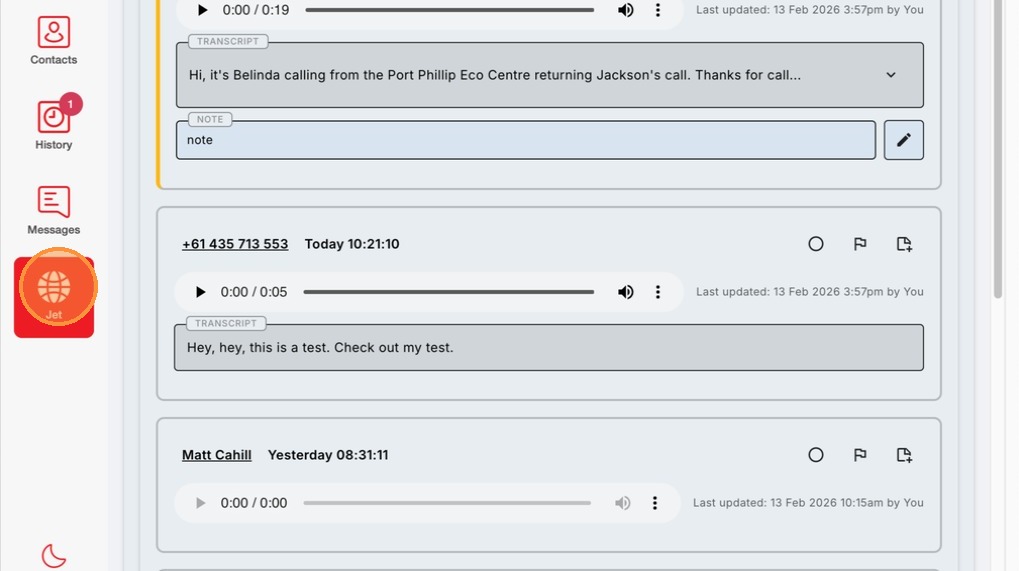
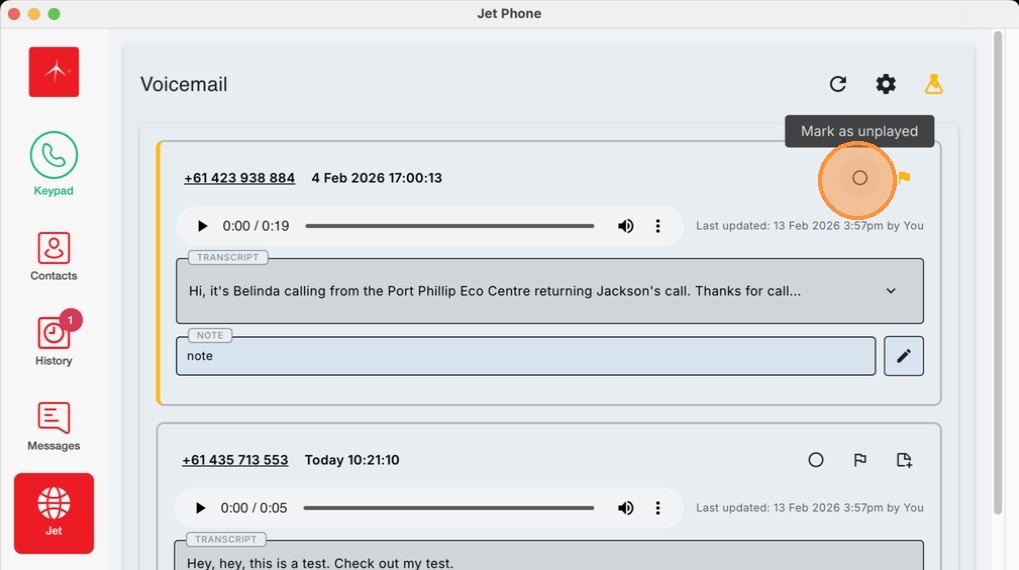
2. Once you have accessed the Jet Tab, you will see a list of your voicemails. For each voicemail, you have the option to mark it as either unplayed or played. This feature helps you keep track of which messages you have already listened to and which ones are still pending review.
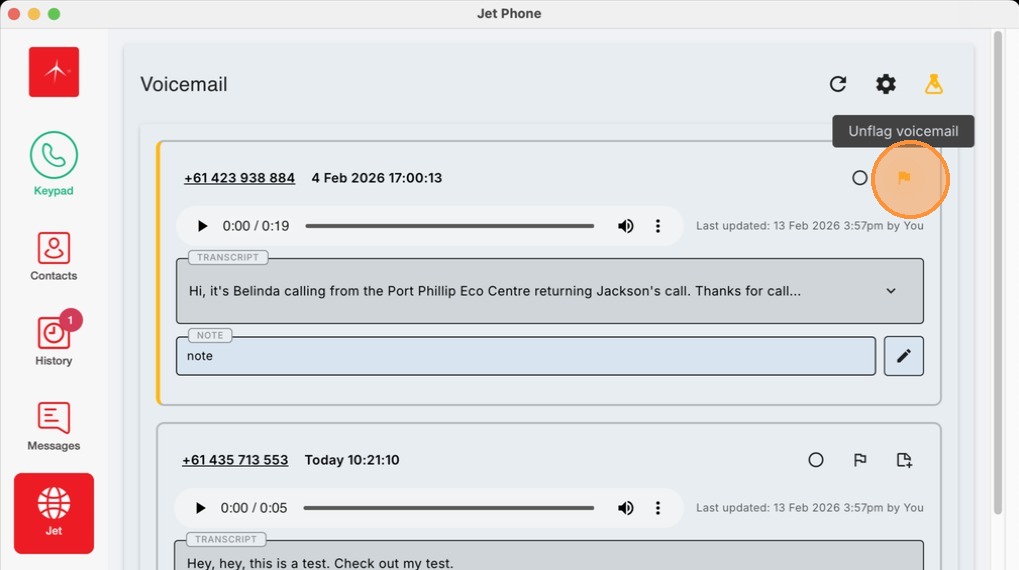
3. If you come across a voicemail that is particularly important or requires your attention later, you can flag it. By flagging a voicemail, you ensure that it stands out from the rest, making it easier to locate and prioritise when needed.
4. Additionally, you have the capability to add notes to each voicemail. This is especially useful for jotting down important details, reminders, or any follow-up actions related to a specific message. Adding notes helps you stay organised and can be used to relate information to your team.
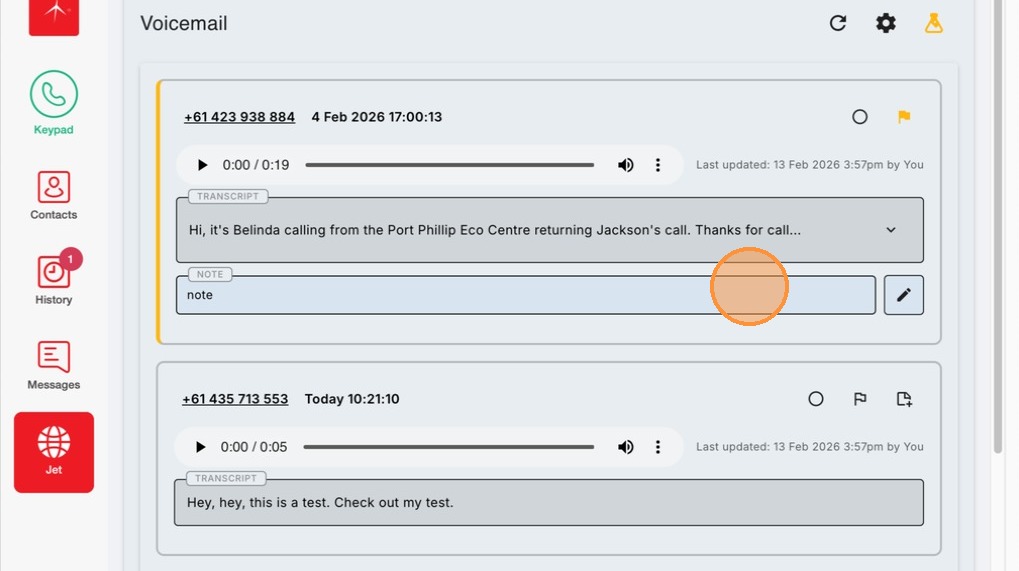
5. After adding notes, it is essential to click the Save button. .