Welcome to Jet Hub!
The Jet Hub is your complete online reporting and call management portal.
This article will run through how to navigate through your portal and how to set your preferences to make your time with Jet the most efficient you can be!
You can skip ahead at any time to:
Setting up your Favourite Pages
Navigating Jet Hub
When you log into your Jet Hub, you will be directed to the home page, which looks like this:
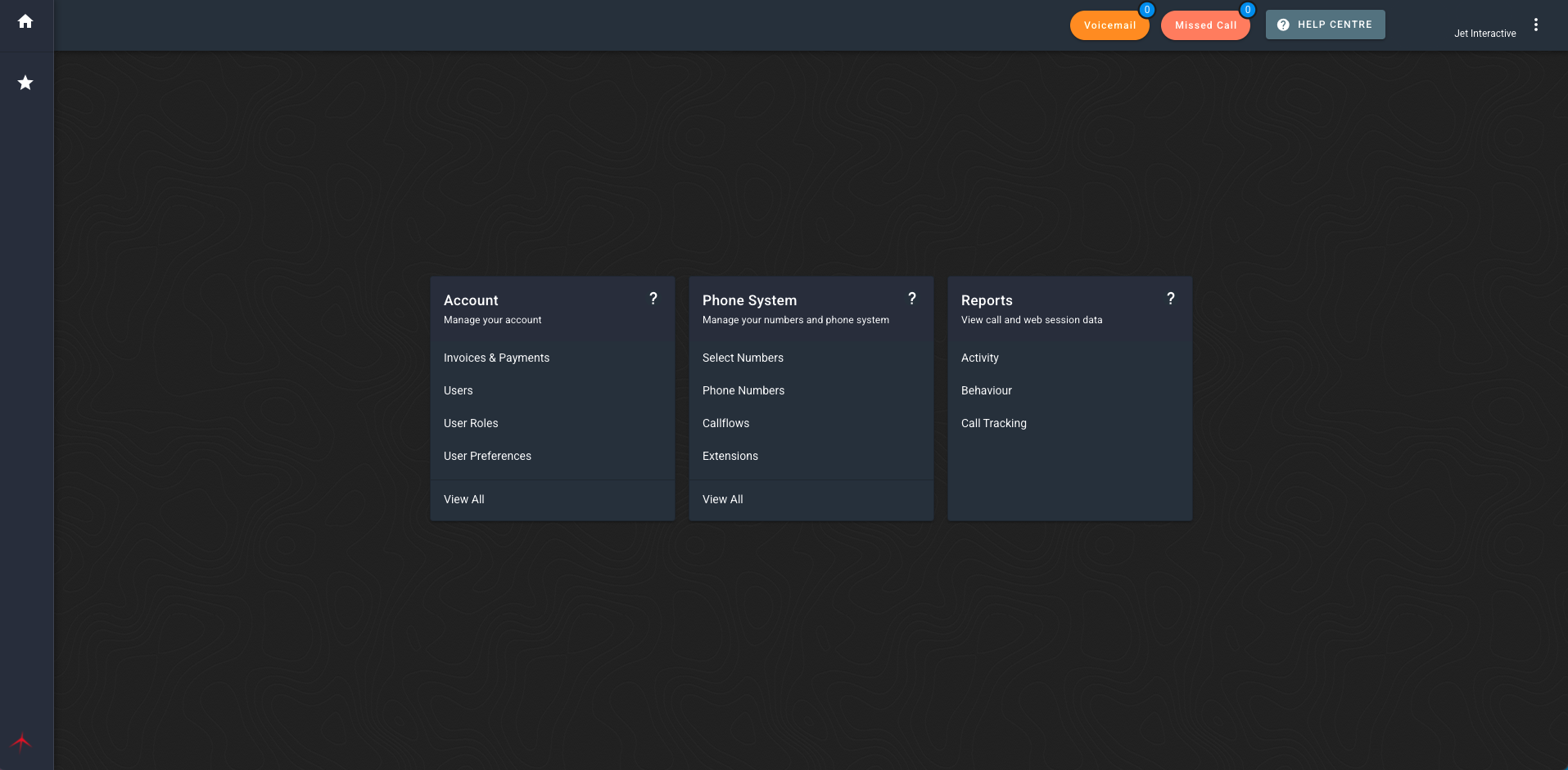
Let's go through the menu features.
Home
At any time, you can select the Home button in the top left, and this will take you to the home page of your menu and display all your menu options.

Favourites
Your favourites are where you go to modify your favourite pages and change your user preferences. More information on setting up your favourite pages is outlined further down in this article.

Sidebar
The panel on the right of your screen is called the sidebar. This is where your favourite pages will sit for quick access. See below for more information on setting up your favourite pages.
Action Bar
Across the top of your screen is your Action Bar. Your Action Bar contains tools and settings to assist you in managing your calls and agents, such as voicemails, missed calls and agent online status.

For more information on how to use each page can be found on our Help Centre in the specific articles on each function:
You can also access the Help Centre directly from the Action Bar. The Help Centre is where you will go for all your Jet Interactive questions. If you are unable to find the information you need, you can also submit a ticket to get assistance from our team.
Switch Accounts
If you have multiple accounts, you can switch between them using the menu in the top right.

Menu
The boxes on your screen are called "cards". Each menu card has a description across the top explaining what this menu contains.
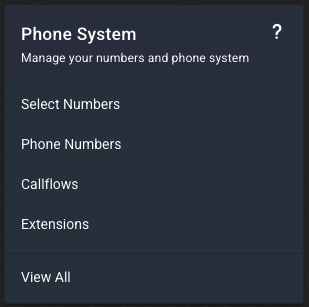 This is a menu card with sub items.
A menu card may have sub-items in it. You can click on a sub-item to open the page directly, or click View All to see all sub-items as their own cards. A card with no sub-items will have the description in the body of the card, rather than across the top.
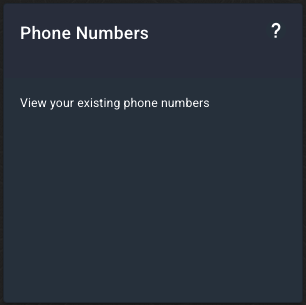 This is a menu card with no sub items.
Sometimes you will have further cards with sub-items, and you can move further into the menu as needed.
Help
In the corner of any menu card, there is a help icon. Clicking this icon will open the Help Centre in a new tab, straight to the article or group of articles that relate to the page you are on.

Setting up your Favourite Pages
For quick access, you can pin your most-used pages in Jet Hub to the sidebar on the left of your screen.
When you log in for the first time, you will see the following message in your sidebar:
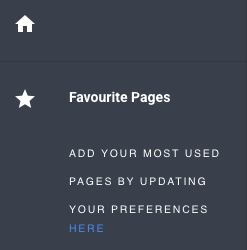
Click this message to enter your User Preferences and set up your favourite pages.
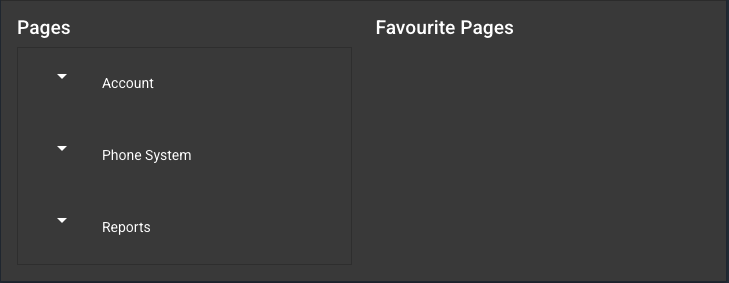
To pin a page, use the dropdown to locate your page, and drag the page name from the list of pages on the left to your Favourite Pages list on the right. Click and drag within the right column to reorder.
There's no need to save, this change is instant.
Your selected pages will now appear in your sidebar for easy access.
You can access your User Preferences from the Account menu at any time, or by clicking Favourites in your sidebar.
User permissions
Your user role will determine what menu items you can see in the Jet Hub menu. This role will also determine what edit permissions you receive.
Account Admin
You have full View and Edit privileges to all call management and reporting features.
You are authorised to make changes to this account when speaking to Jet Support, including adding or removing services.
You do not have access to Billing unless you also have the Billing role, however, you will see any account notices such as overdue payments, etc.
Standard User
You can View the Phone Numbers page and general reports.
You can Edit Service Names but not View or Edit any Callflows, Phone Users or Queues.
You cannot make any changes to the account when speaking to Jet Support.
Billing User
You have access to the Invoices & Payments screen to manage your account's invoicing needs and make payments.
You do not have View or Edit access to any other part of Jet Hub.
You may update the invoice details with Jet Support, but not make changes to numbers or services (including cancelling the account).
Account Admins can update your user roles via the Accounts menu at any time.
More information here: Modifying User Roles