This article will provide a brief overview of the Total Calls & SMS report in the Jet Portal. This report can be found in Jet Hub under Reports > Activity.
The Total Calls & SMS report displays a log of all calls on your account both inbound & outbound along with all SMS both inbound and outbound that are sent via a cloud mobile.
This guide will show you how to add and remove fields from the report, take you through the available fields and their definitions and show you how to filter and export the report.
Adding & Removing Fields
Fields can be added or removed from your Total Calls & SMS report. The fields that you select will be saved for the next time that you access the report.
To add or remove a field from the report, click on the field selection button

This will bring up a list of available fields. The fields that are checked will be shown on the report, the fields that are unchecked will not be displayed in the report. To add a field to the report, simply click the checkbox.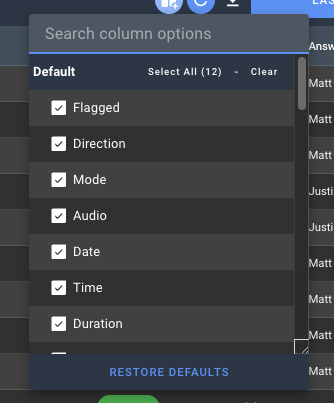
You can add all fields of the same type at once, by clicking the select all button shown at the top of each grouping. You can remove all fields of one type by clicking the clear button.
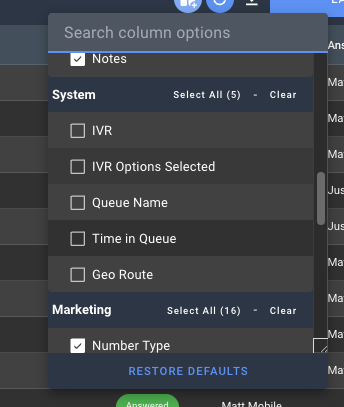
At any time, you can restore your Total Calls & SMS report to show the standard fields, by clicking restore defaults. This will bring back all the fields listed in Default.
Available Reporting Fields
The Total Calls & SMS report contains all information about your calls, the call information has been broken down into four categories;
Default
The default fields are the fields that are displayed when you first load the total calls & SMS report. The telephony information contains all of the basic detail of each call or SMS.
|
Field Name |
Description |
|
Flagged |
Helps with sorting and prioritising individual call records |
|
Direction |
This will display an icon to indicate whether a call or SMS was made inbound to your organisation or outbound from one of your staff |
|
Mode |
Call or SMS communication |
|
Audio |
Recording of the call or message |
|
Date |
Date the call was made |
|
Time |
Time of the day the call was made in a 24 hour format |
|
Duration |
Length of the call in minutes and seconds |
|
Jet Number |
For inbound calls to your business this is the number customers dial. For outbound calls this is the number that a call was made from |
|
Service Name |
A unique name for the phone number |
|
Customer Number |
For inbound calls this is the number the customer called your business from. For outbound calls this is the number you called |
| SMS |
Mobile text or SMS message |
| Status |
Unanswered = The call was not answered and was not cancelled by the caller |
| Number Type |
Summary of the type of inbound call traffic |
| Service Group |
Helps to group numbers by department or cost centre |
Agent
The Agent fields will display which phone user has made or received a phone call. If you are using an external phone system, these fields will show the external answering point number
| Field Name | Description |
| Phone User | The staff member within your jet portal assigned to the Jet number |
| Answering Point | The phone number or phone user that an inbound number is terminated on |
| Notes | Place free form comments about the call |
System
The System fields will display technical information about each call. They include how long a caller has spent in a queue, and which IVR section they have selected. These fields will only populate information if you have the relevant widgets in your callflow.
| Field Name | Description |
| IVR | The IVR used in the callflow |
| IVR Options Selected | The option selected by the caller |
| Queue name | Name of the internal call queue |
| Time in queue | Time the call was in the call queue |
| Geo Route | What option the call was geographically diverted to |
Marketing
The marketing fields will show you the marketing source of your phone calls. These fields contain information such as the keyword a caller used to find your company, the page of the website they were on when making a call & other relevant campaign information. The marketing fields require Jet's session tracking to be implemented on your website.
| Field Name | Description |
|
Source |
Sources are where your site visitors have come from; essentially, where they were before they landed on your site. This could be a search engine, such as Google, or another website such as Facebook |
| Medium | Mediums indicate how the user arrived on your website. For example, this could be a referral (clicking on a link on the other website), organic (an organic listing in the SERP), or CPC (a cost per click paid ad) |
| Channel | Channels are groupings of different sources (the origin of traffic, e.g. a search engine such as ‘google’ or a domain name) and mediums (the general category of sources, e.g. ‘organic’ for all organic search or ‘referral’ for all web referrals) |
| Referrer | Referrals are the segment of traffic that arrives on your website through another source |
| Campaign | Designated campaign name for paid traffic |
| Keyword | The keyword entered by the searcher |
| Landing Page | The page that searcher first entered your webiste on |
| Tracked Website | Which of your websites this traffic is attributed to |
| GA Client ID | A measurement ID in Google Analytics, A unique identifier for a web data stream |
| AG ID | Adgroup from Google call forwarding |
| CMPID | Campaign number for google call forwarding |
| GCLID | Google Click ID (GCLID) is a parameter passed in the URL with ad clicks, to identify the campaign and other attributes of the click associated with the ad for ad tracking and campaign attribution |
| Browser | The browser type that the caller is using i.e, Chrome |
| Device Type | The device type that the caller is using |
| URL | This is the full URL and tagging of the reffering site |
| Operating System | The operating system of the device used by the caller |
| Call ID | Unique identifying number for each call, This is generated by Jet's network |
Filters & Downloads

Sorting
Sorting data is an integral part of data analysis. You might want to arrange a list of calls all from the same caller number or compile a list of calls that all went to the same answering point. Sorting data like this will help you quickly visualise and analyse the data. To do this click on any column heading to sort the data in that column.
Inbound Calls Column Headings - 
-
 Ascending Order - Clicking once on a column heading will show the data in ascending order and you will see an upward arrow next to the column heading.
 -
 Descending Order - Clicking again on the column heading will sort the data in descending order and you will see a downward arrow next to the column heading.
Clicking a third time will remove the sort on data in that column and will return to default. By default, the data will be arranged by date and time showing your most recent calls first.
Downloads
