The Call Overview report gives an overview of all calls that are coming Inbound through your Jet phone numbers or Outbound via your Jet phone users. This view consists of four reports -
- Inbound Call Status
- Inbound Call Overview
- Outbound Call Status
- Outbound Call Overview
Call Status
Call Status |
Definition |
| Answered |
The call was answered or forwarded to an external number. If forwarded, this could also be an IVR, queue or answering service picking up the call. |
| Unanswered |
The call was not answered. It has been sent to a Voicemail or a Hang Up widget. |
| Cancelled |
Any call where the caller has hung up the call before it has been answered. E.g. The caller has hung up in a queue, IVR menu or during a greeting message. |
| Busy | When there is not enough capacity on your phone lines or no phone users are available, but callers are still trying to get through. |
| Unavailable | The call was not answered. It has either timed out in a queue or the phone user was unavailable. |
| Landline | The total number of calls from or to a landline or Local numbers. |
| Mobile |
The total number of calls from or to mobile numbers. |
| Total Duration | The total duration of calls in the set date range. Displayed in hours, minutes and seconds. |
| Avg Duration | The average length of calls in the set date range. Displayed in hours, minutes and seconds. |
For more definitions on Call Statuses and other terminology used in this report, please refer to the Jet Reporting Guide.
Navigating to Report
From the Jet Portal Home page, under the Reports menu, select Behaviour, then Call Overview.
Inbound Call Status
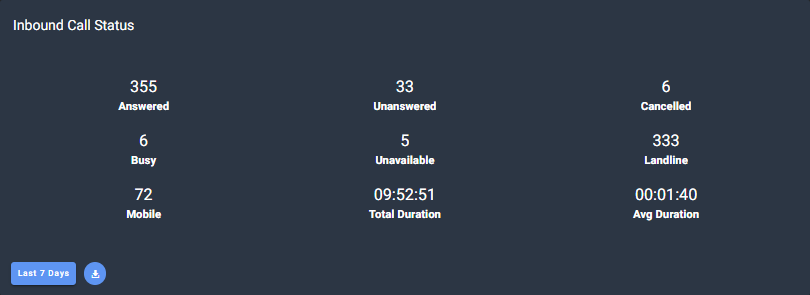
The Inbound Call Status report displays the total number of calls for each call status, as well as totals for calls made to landlines and mobiles.
It also displays the total duration of calls and the average duration per call.
All data will be displayed for the date range selected, by default it will be the last 7 days.
Inbound Call Overview
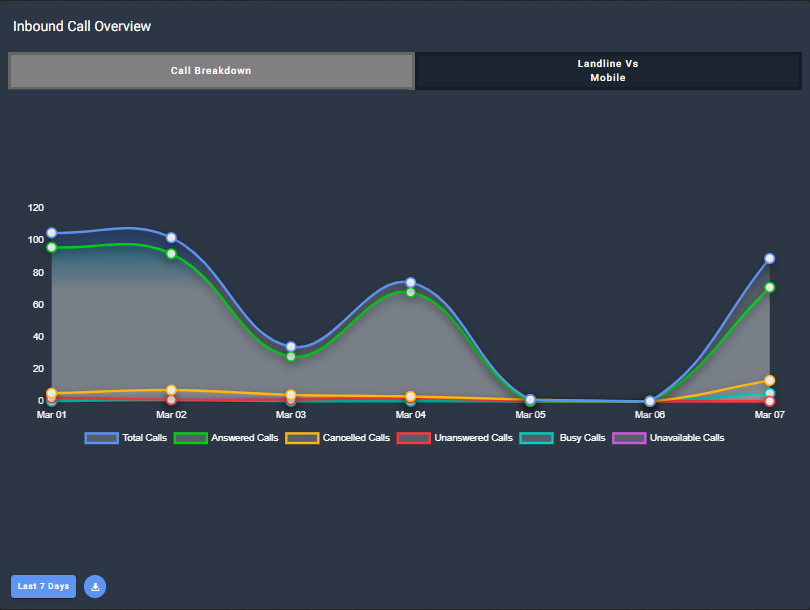
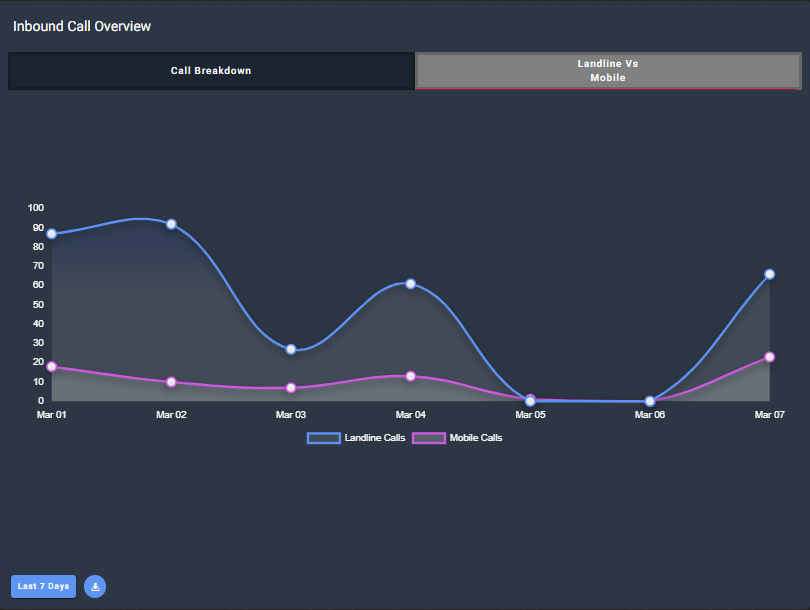
This report displays two different line charts - Call Breakdown and Landline Vs Mobile. The different line charts can be selected by clicking on the tabs at the top of the report.

Inbound Call Breakdown - The Inbound Call Breakdown shows the total number of calls grouped by status for each day in the selected date range.
Inbound Landline Vs Mobile -This graph shows the total number of calls received from landline numbers vs the total number of calls received from mobiles in the selected date range.
Outbound Calls Status
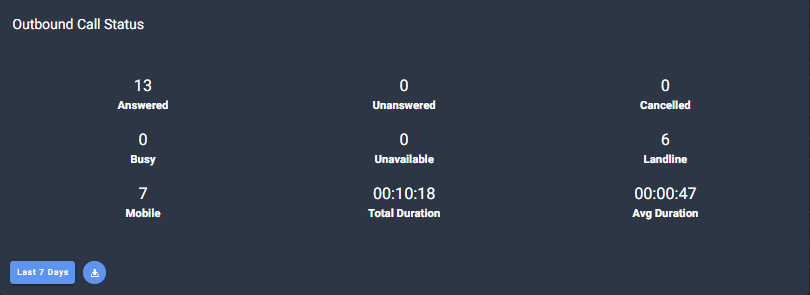
The Outbound Call Status report displays the total number of calls for each call status, as well as the totals for calls made to landlines and mobiles.
It also displays the total duration of calls and an average duration per call.
All data will be displayed for the date range selected, by default it will be the last 7 days.
Outbound Call Overview
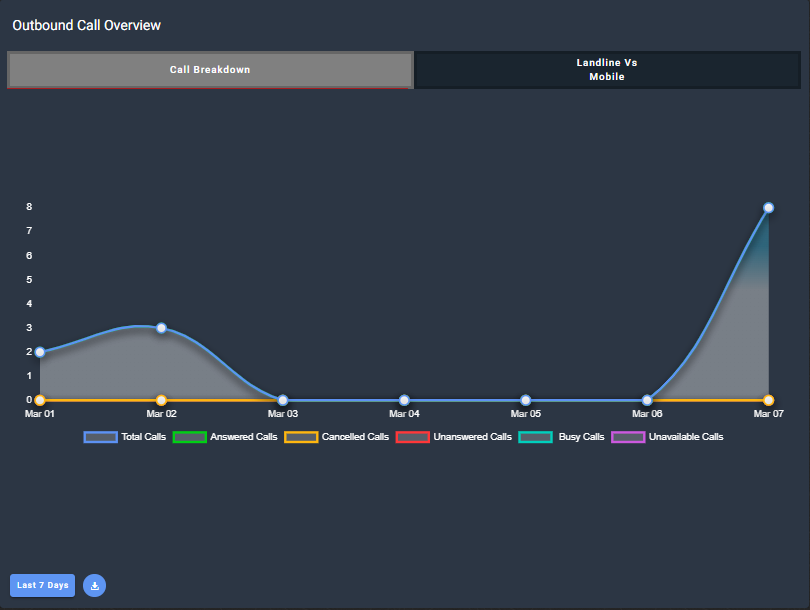
The outbound call overview report displays two different line charts - Call Breakdown and Landline Vs Mobile. The different line charts can be selected by clicking on the tabs at the top of the report.

Outbound Call Breakdown - This graph shows a visualisation for the total number of calls grouped by Call Status for each day in the selected date range.
Outbound Landline Vs Mobile - This graph shows the total number of calls made to landlines vs the total number of calls made to mobiles in the selected date range.

Chart Filters
You can click any of the Call Status results to hide these records from your report.
For example, the image below would show only Unanswered, Busy or Unavailable calls.

Date Filter and Download
Date Filtering - By default, all Jet reports will display the last 7 days.
To change this, select Last 7 Days at the bottom of the report. This will display an extended menu where you can select from pre-set date ranges or chose a custom date range.
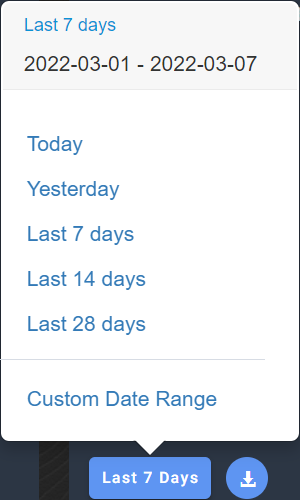
Note - It will only change the date range on the selected report.
Download - Select this icon to download a .csv file of the current report.
