In this article, we will show you how to view or modify your phone numbers and callflows. You can watch the video below, or follow along with the full written information.
To view your phone numbers, choose the Phone Numbers option from your main menu.
PHONE NUMBERS
To view your phone numbers, choose the Phone Numbers option from your main menu.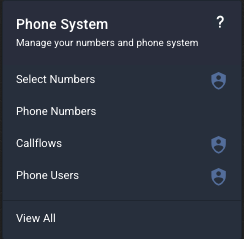
This will display a list of your phone numbers, along with the callflow, or routing rules, that is set up for each number.

From the phone numbers screen, you can change the Service Name, Service Group, download a list of your services or change the callflow of each number.

To change the callflow associated with a phone number, click on the phone numbers you wish to change and click Change Callflow.

Select from your list of available callflows and click Assign, then click OK.The selected phone number will now have the updated callflow.
CALLFLOWS
To view and update your callflows, navigate to your main menu and under Phone System, choose Callflows. This is your callflows page.
A Callflow is where you will configure what happens when one of your phone numbers receives an inbound call. You can have a callflow for a single number, or a callflow designed for many services.

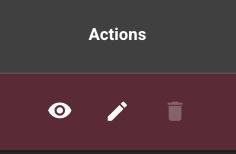
From your list of callflows, you can click on the View button to see what widgets are set up, or click on the Edit button to make changes to the callflow.
More info in callflow setups and plans can be found here: Callflow 101
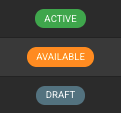
You can also view whether your phone numbers have any associated numbers, the last modified date of your callflow, and the status (DRAFT, AVAILABLE or ACTIVE).

An ACTIVE callflow is currently in use by one or more of your phone numbers.
An AVAILABLE callflow is complete, but has not been used by any services.
A DRAFT callflow is incomplete and not able to be used yet. Complete your callflow to 100% to change the status to AVAILABLE for use.
An AVAILABLE callflow is complete, but has not been used by any services.
A DRAFT callflow is incomplete and not able to be used yet. Complete your callflow to 100% to change the status to AVAILABLE for use.
To learn how to create new callflows, please view our articles below on creating new callflows.