The Account Manager is where we go to view or update any account information for the account you are currently logged in to.
This article will cover:
Account Details
Edit Account Information
Here you can select  to update the account name (this will also update the name in Zuora), or to add/remove a parent/child relationship.
Suspending an Account

This button will Suspend an account, for the purposes of non-payment of invoices. When an account is suspended, the following message will appear in the top left of their Action Bar: 
This will be visible by any account admin logging into Jet Hub.
All Inbound calls will go straight to voicemail, and any outbound calls will hear a message that the account is not allowed to make calls.
Deactivating an Account

This button will deactivate an account. It will perform the following actions:
- Delete all Queues
- Delete any Call Parking setups
- Delete Music on Hold
- Delete Phone Users
- Quarantine all Phone Numbers
- Remove all Jet Hub portal users from this account
- Delete all callflows
- Delete any PBX
- Remove all Zuora subscription IDs
- Delete any Integrations
- Delete any webtracker codes
You will need to confirm this action by entering their account number to complete this step.
Refreshing Auth Rules

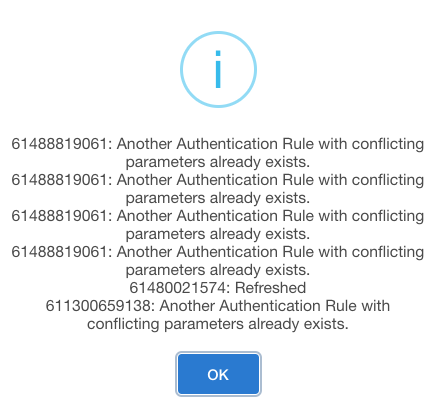
Very rarely, a number may not have the correct Auth rules on the SBC, and calls may not connect. Selecting this button will run a manual Auth refresh on these rules to ensure everything is configured correctly.
eg: one of these mobile numbers was missing an auth rule.
Billing Details
Viewing Billing Details
This page is where we can view and manually refresh any billing rules and information.

You can see in this image that the account has 5 x cloud mobiles, 5 x mobile numbers and 1 x 1300 number.
You can manually refresh these allowances using the refresh button under Actions. This will query their Zuora subscription for the latest version of their services.
Updating Email Address for Invoices
To update the email address that invoices are sent to click on Account Contacts.
You will now see the Bill to Contact and the Sold to Contact details. Under the Bill to Contact.
Update the email address to the email address you would like invoices sent to.

Then select Update.

Note - this will not update any additional emails set up in zuora to receive a copy of invoices. These must be edited via the Zuora account page.
PBX
This page is where you will manage any PBX settings including the name of the PBX and the billing subscription number associated with it.
 You can Edit the billing subscription for this PBX by selecting the Edit button.
 You can update the Group Name of the PBX by selecting the Update Name button.
Note - this changes all extension logins and should be used sparingly. All extensions will need to log in again and this may cause IP blacklisting if done without notice.
Emergency Details
This page is where we can update any emergency contact details that are required for IPND purposes.
We use the Sold To contact in Zuora to pull these details. If you need to update this information, please make the change in Zuora, then come to this page and select Contact Form followed by Pull From Zuora.
 .
. 
This will then pull the latest information from Zuora and validate this for update.
Press Save to complete.
Sent Email History
This page shows a list of all system-generated emails such as Jet Phone logins with the timestamp of the send and the subject and recipient.
This does not include voicemails or other callflow-related notices, and does not include invoice history.
To view a list of billing-specific communications, please view the account page in Zuora.