If the payment integration with Braintree encounters a problem while processing a payment and is unable to determine the payment status from the gateway, Zuora will keep the payment in Processing status to prevent duplicate payments from being attempted on the same invoice(s).
Follow the steps below to manually approve or error out the payment.
Step 1: Locate the payment stuck in processing status.
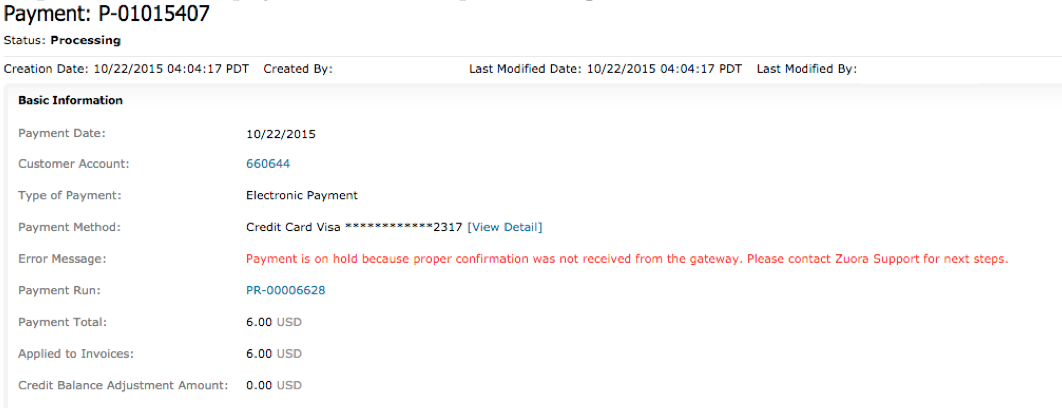
Step 2: Verify the payment status by going to your Payment Gateway UI Console (processed or declined).
You do this via the Braintree portal here: https://www.braintreegateway.com/merchants/52trgp98rb3q6wpn/transactions/advanced_search
Use the transaction date/time and the transaction amount to try and locate the payment. If this does not exist, you should mark the transaction as failed in step 4.
Step 3: Find the Payment ID
(note this is not the payment number)
You can locate the payment ID with the URL on the payment page.
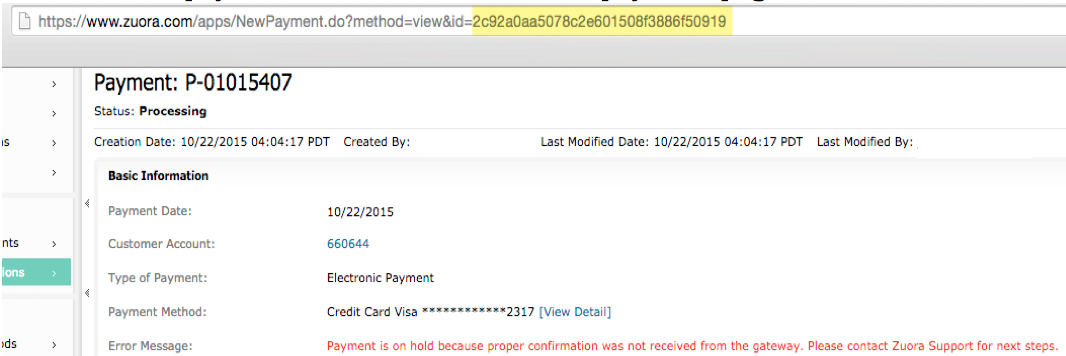
Step 4: Enter Status details
Use the following URL and add the Payment ID you copied from step 3 at the end of the URL (replacing the X's with the Payment ID).
https://www.zuora.com/apps/PaymentLog.do?method=addTransactionLog&paymentID=XXXXXXXXXXXXXXXXXXXX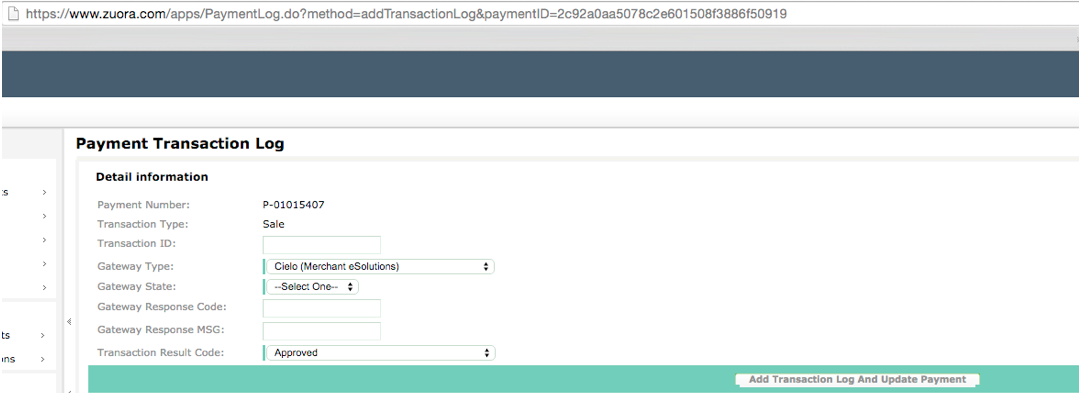
Fill out the fields as below:
| Transaction ID |
Braintree ID (if this exists in Braintree). Required if this transaction was successful or no refunds or void options will be possible. |
| Gateway State | Submitted = Payment has processed successfully on the gateway. Not Submitted = Payment did not process successfully on the gateway or does not exist and you want to error out the payment for retry. |
| Gateway Response Code | leave blank |
| Gateway Response MSG | leave blank |
| Transaction Result Code |
Approved = Payment has reached the gateway and you want to update the payment status to Processed. DO NOT USE ANY OTHER RESULTS |
Once the required fields are filled, click Add Transaction Log and Update Payment.
Next page should update the status of the payment to Processed or Error based on your choices in Step 4.